
Register the tool in ILIAS
This guide is meant for the administration of the ILIAS installation and for whoever runs NextPad. Both sides need HTTPS. Below, https://nextpad.example.org stands for the NextPad address and https://ilias.example.org for the ILIAS address.
Each kind gets its own tool. Teachers then simply pick NextPad Idea collection, NextPad Quiz or NextPad Pad and have nothing to type.
Steps in ILIAS
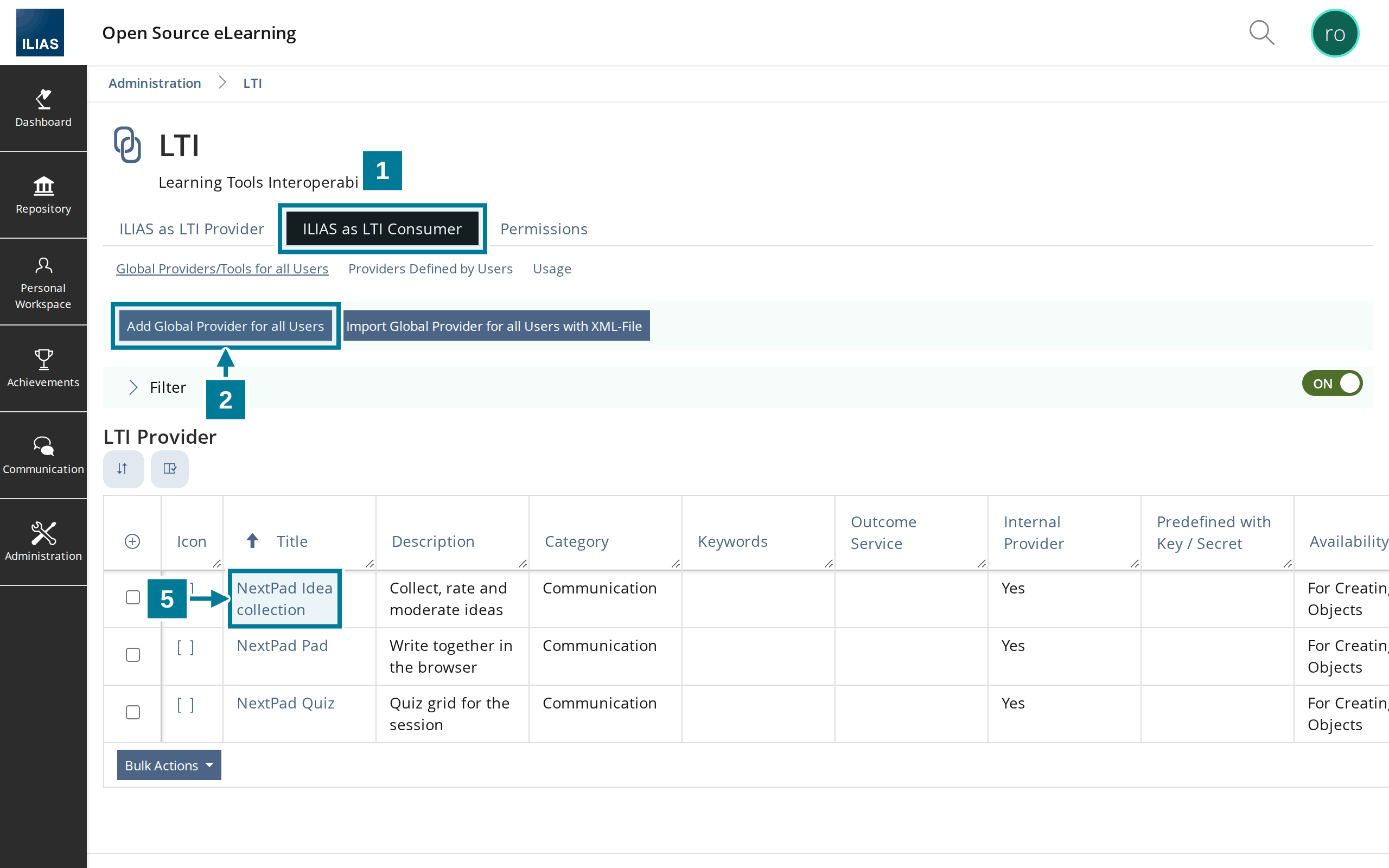
- Open Administration › Extending ILIAS › LTI and choose the tab ILIAS as LTI Consumer.
- Choose Add Global Provider for all Users.
- Fill in the form as in the table below and save it.
- Repeat steps 2 and 3 for the other kinds, each with its own title and its own value for
typ. - Open a saved provider again through its title. The hints field now lists the values for NextPad.
The fields
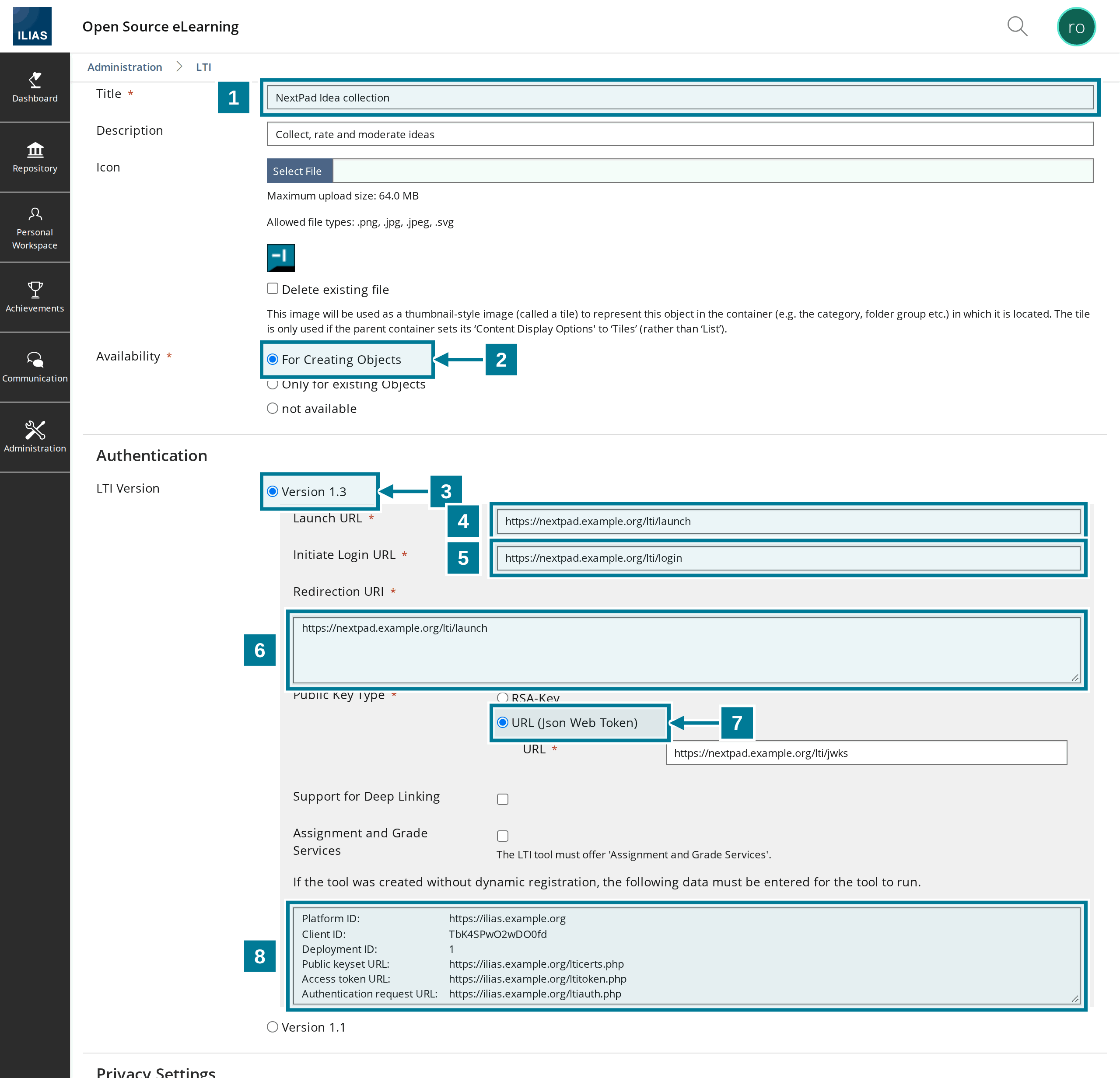
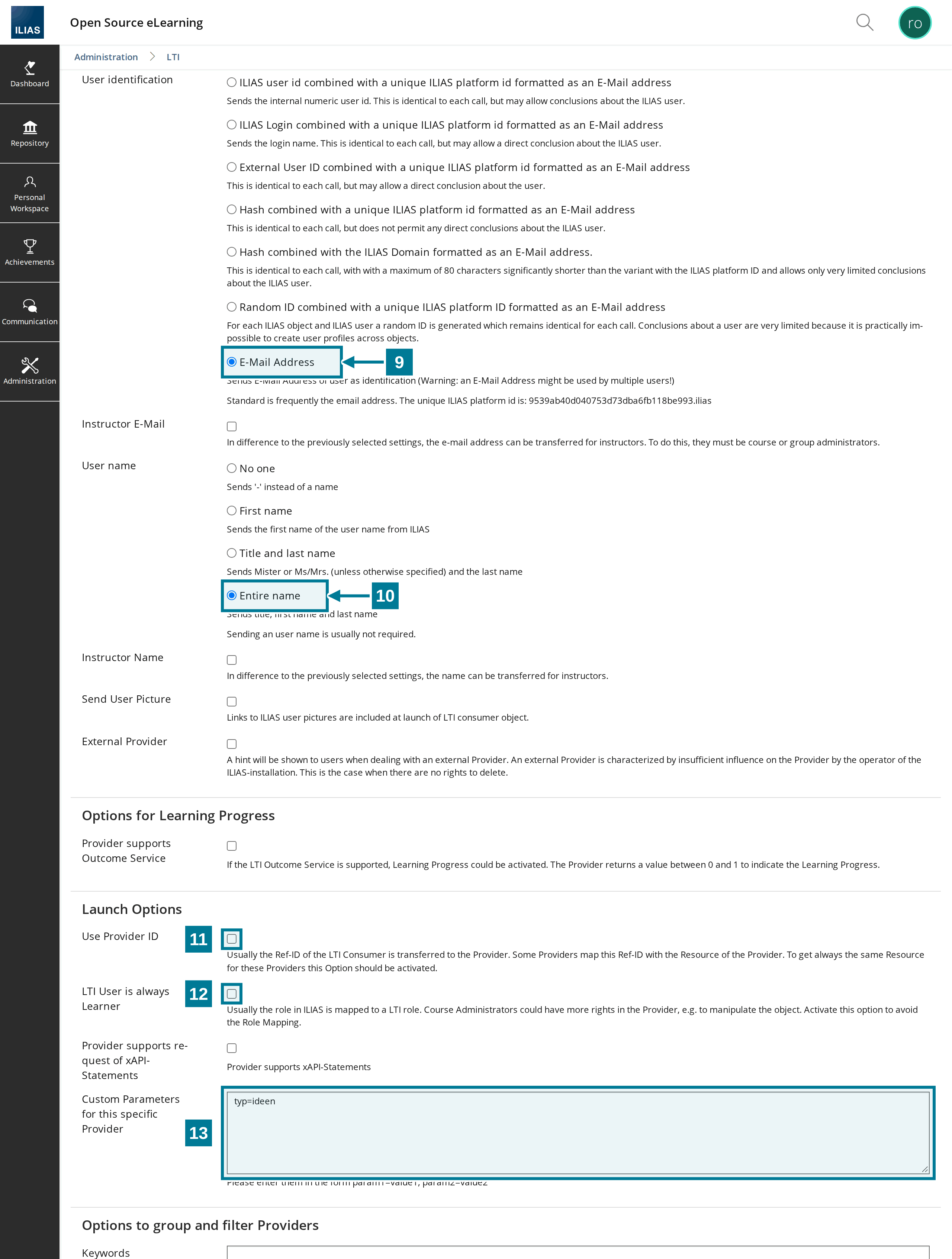
| No. | Field | Value |
|---|---|---|
| 1 | Title | as teachers should read it in the list, for example NextPad Idea collection |
| 2 | Availability | For Creating Objects |
| 3 | LTI Version | Version 1.3 |
| 4 | Launch URL | https://nextpad.example.org/lti/launch |
| 5 | Initiate Login URL | https://nextpad.example.org/lti/login |
| 6 | Redirection URI | https://nextpad.example.org/lti/launch |
| 7 | Public Key Type | URL (Json Web Token), below it https://nextpad.example.org/lti/jwks |
| 8 | Hints | appear only after saving; the values belong in the NextPad configuration |
| 9 | User identification | E-Mail Address |
| 10 | User name | Entire name |
| 11 | Use Provider ID | leave unticked |
| 12 | LTI User is always Learner | leave unticked |
| 13 | Custom Parameters for this specific Provider | typ=ideen, for the quiz typ=quiz, for the pad typ=pad |
The parameter values ideen, quiz and pad stay the same in every language. The NextPad mark suits the Icon, “Communication” the Category. Both are optional.
With Use Provider ID all objects of a course would share one collection. With LTI User is always Learner ILIAS would send no roles to NextPad, and nobody could moderate.
Step in NextPad
NextPad only accepts launches from platforms listed in the platform file lti-platforms.json. Each tool gets an entry there with the values from the hints field:
{
  "name": "ilias-ideas",
  "label": "Sign in with ILIAS",
  "issuer": "https://ilias.example.org",
  "client_id": "AbC123xYz456QrS",
  "deployment_ids": ["1"],
  "auth_url": "https://ilias.example.org/ltiauth.php",
  "jwks_url": "https://ilias.example.org/lticerts.php"
}
issuer is the Platform ID, auth_url the Authentication request URL and jwks_url the Public keyset URL. Client ID and Deployment ID differ per tool. The server documentation describes all fields of the file. NextPad must restart after the file changes.
Good to know
- ILIAS passes name and language on to NextPad. NextPad needs the email address for the notice before deleting one’s own free pads and to recognise admins from
NEXTPAD_ADMINS. The other kinds of user identification send a substitute address such as…@….iliasthat no mail reaches. - Course administrators and course tutors may moderate, in groups the group administrators, as well as the ILIAS administration. Everyone else takes part. If the object sits in a group, the group roles count, not those of the course.
- In a new window NextPad has the full width, and the board is easier to drag onto the projector.
- When ILIAS changes its keys, NextPad fetches the new ones through
jwks_urlby itself.