
Create a pad
A pad is a text that several people write at the same time. Everyone sees the changes of the others at once. Nobody needs an account.
Create a pad
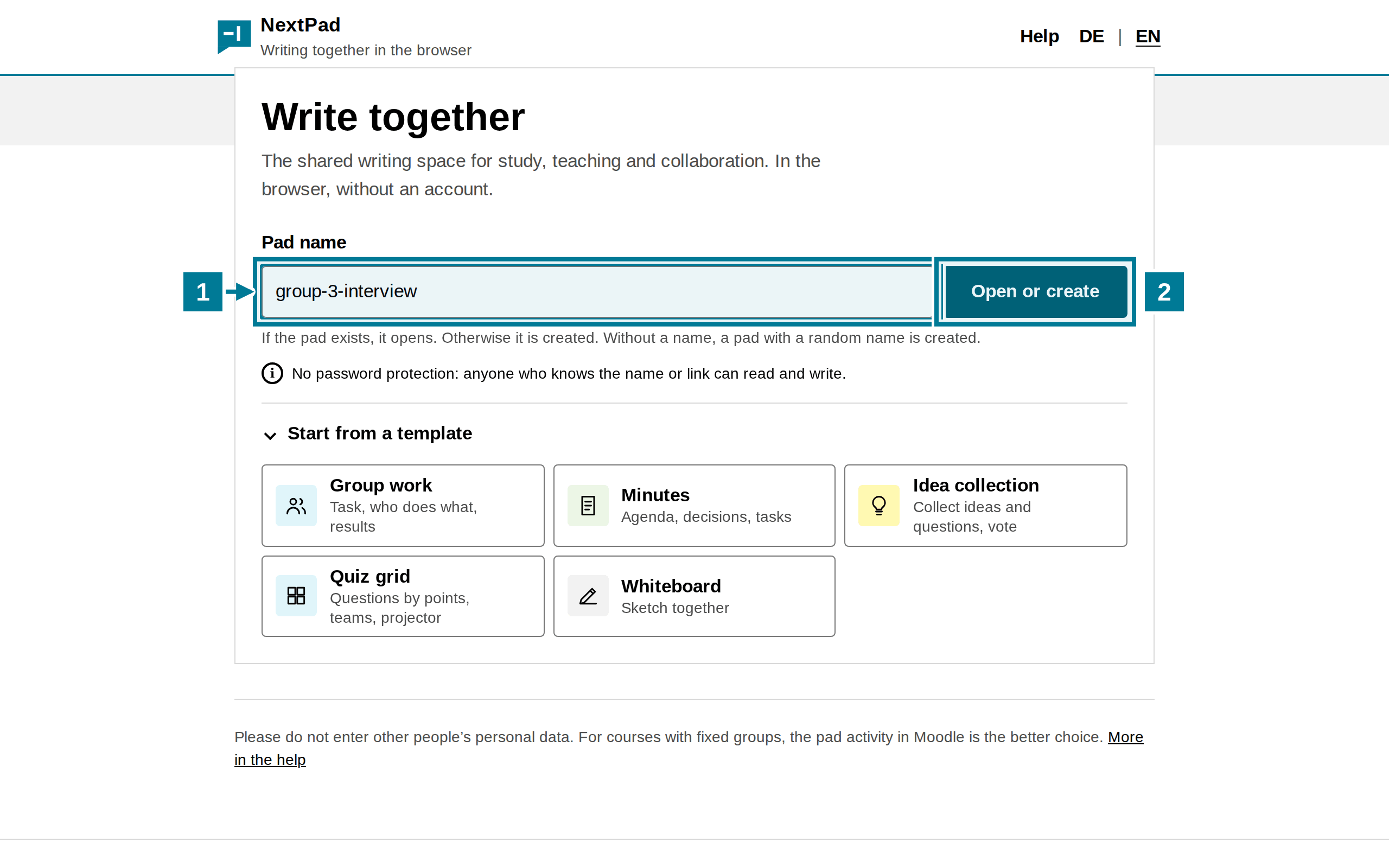
- On the start page, enter a name under Pad name, for example
group-3-interview. Letters, digits, spaces and the characters- _ . ( ) ,are allowed, up to 50 characters. The same name means the same pad: whoever enters the same name ends up in the same text. - Choose Open or create. If the pad exists, it opens. Otherwise NextPad creates a new, empty pad.
Without a name, a pad with a random name is created. The templates under Start from a template come with an outline for group work or minutes.
Write together
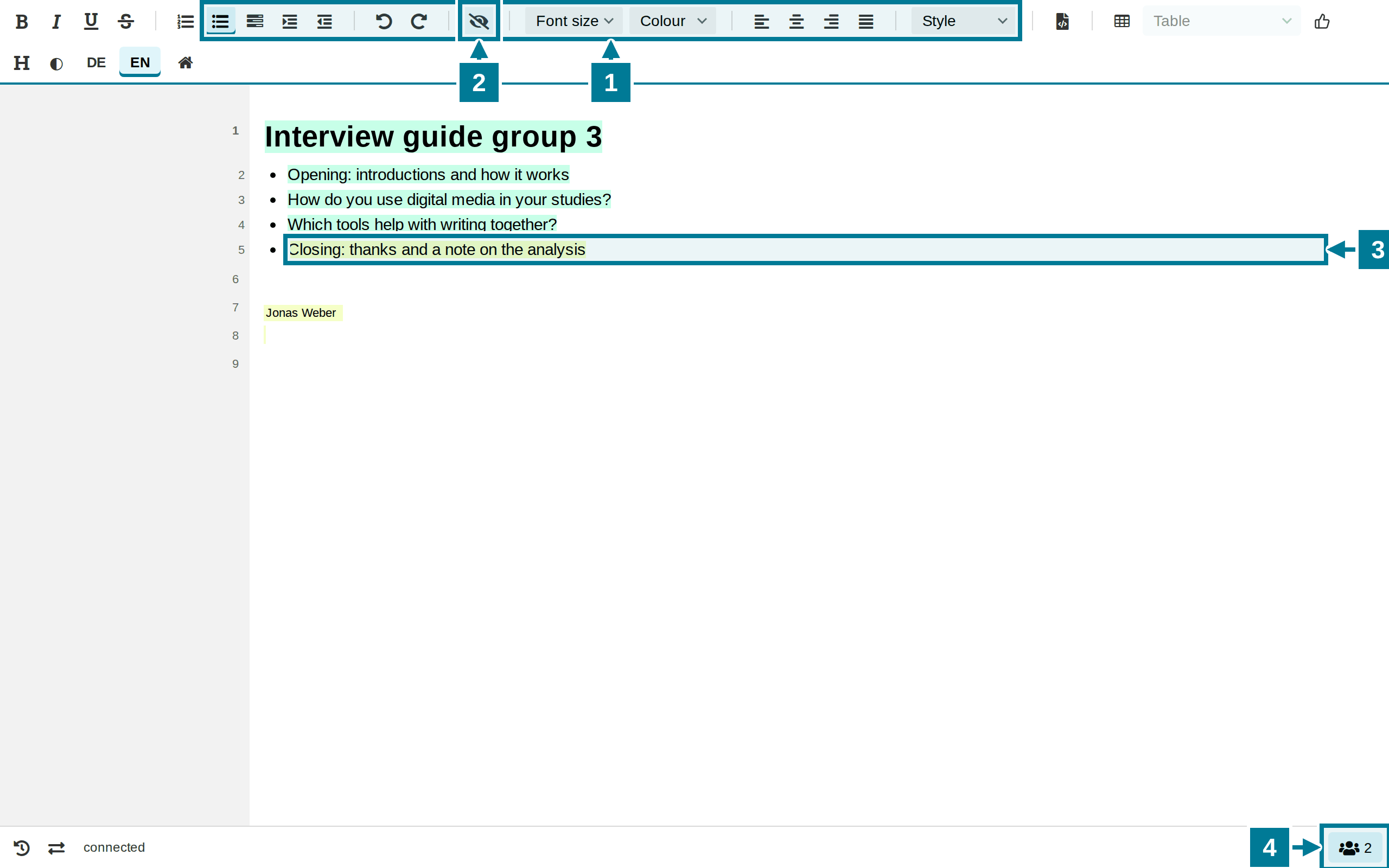
- The toolbar formats the text: lists, indent, undo, font size, colour, alignment and headings under Style.
- The eye hides and shows the author colours.
- What another person writes appears at once in their colour. Here Jonas Weber added the last point.
- The number at the bottom right shows how many people are in the pad.
Enter one’s own name
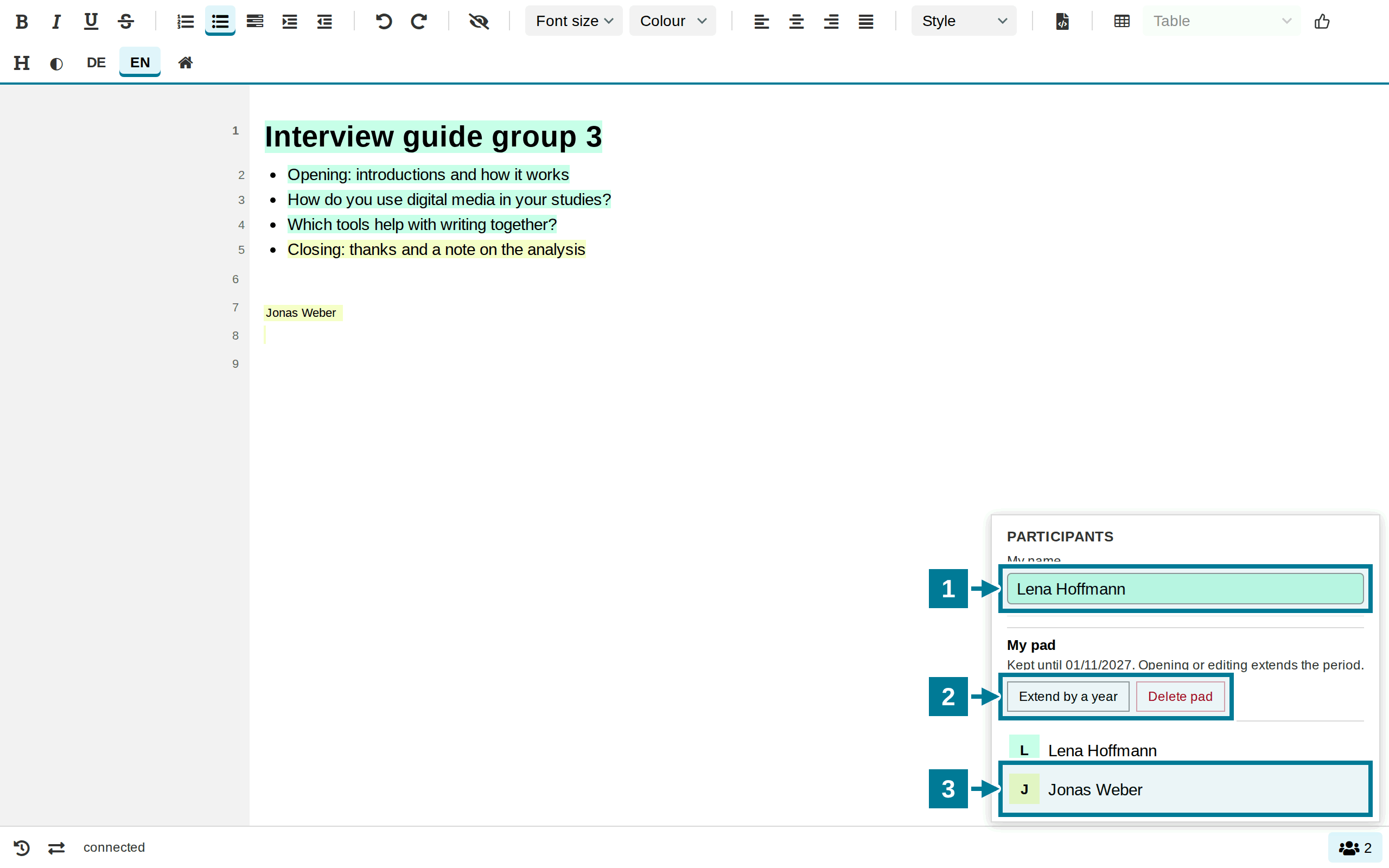
- Tap the number at the bottom right and enter one’s own name under My name.
- Whoever created the pad sees My pad here: how long it is kept, Extend by a year and Delete pad.
- Below are all people in the pad, with their colour.
Share and save
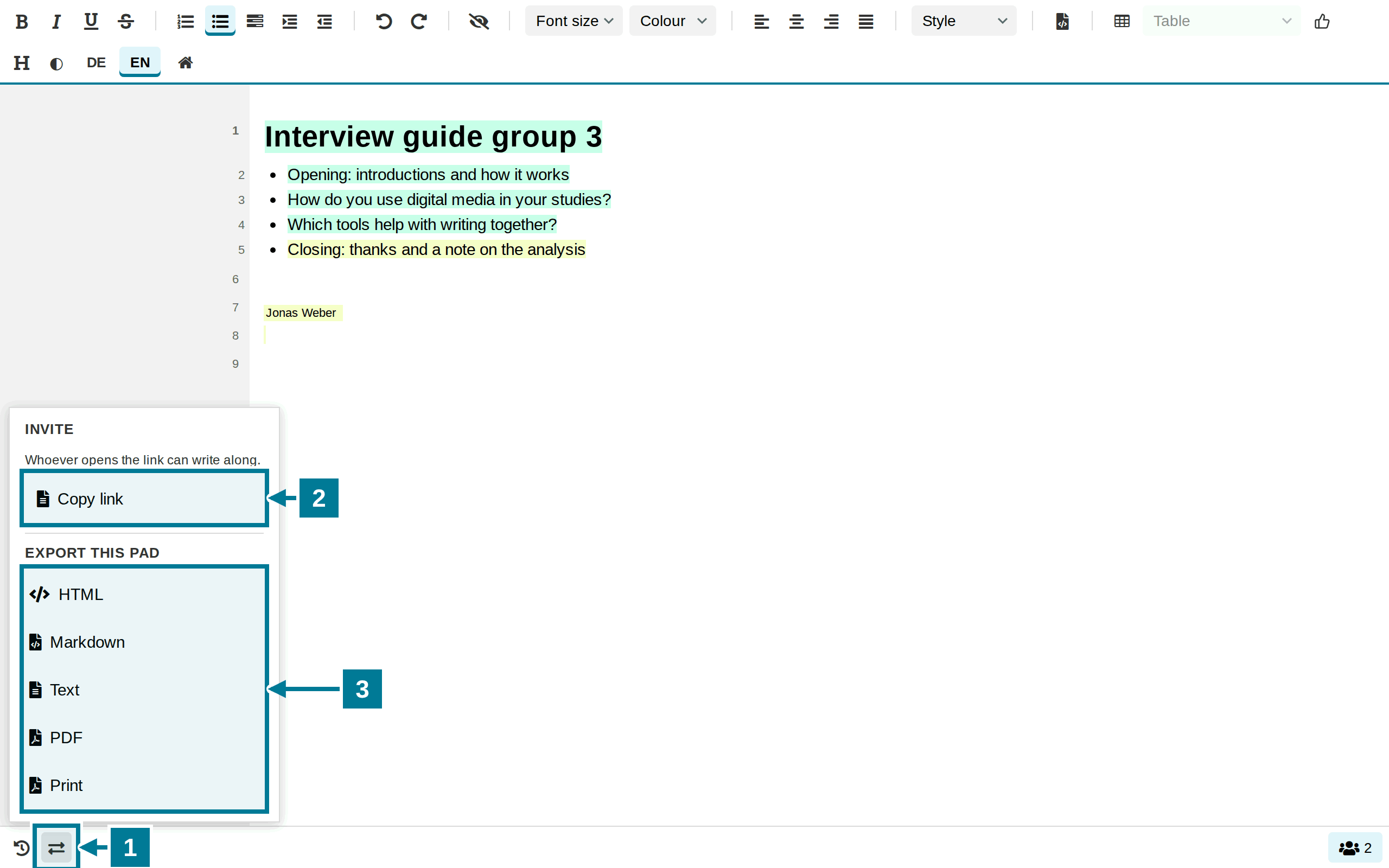
- Open Share and export at the bottom left.
- Choose Copy link and pass the link on, for example in the chat of a video conference or in an email to the group. On a phone there is also Share via device.
- Under Export this pad, save the text as HTML, Markdown, plain text or PDF, or print it.
Insert code
- Type three backticks at the start of a line (
```), optionally with a language such as```python, then Space or Enter. Alternatively choose Code in the Paragraph style menu. - Type or paste code. Pasted text stays in the code block as it is. Enter starts a new line, Tab indents by two spaces, Shift+Tab outdents.
- To leave the block, press Enter three times or choose Normal as paragraph style. To move on to the next control with the keyboard, press Esc and then Tab.
The language is kept in the HTML and Markdown export. The code is not highlighted in colour.
Protect with a password
- Choose the number at the bottom right. Under My pad is the section Protection.
- Enter a Password with 6 to 128 characters and choose Set password. Passwords that are easy to guess, such as “123456” or the pad name, are rejected. A short phrase or two words with a number work well, such as “red-board-7”.
- Everyone else enters the password the next time they open the pad. The browser remembers the access for 30 days. A lock next to the number shows that the pad is protected.
Change password locks out everyone who knew the old one. Anyone who has the pad open sees a notice and enters the new password after reloading. Remove password opens the pad again. Whoever created the pad needs no password.
Manage in another browser
Extending, deleting and the password are tied to the browser the pad was created in. An owner link extends managing to another browser, for example on the lecture hall PC.
- Choose the number at the bottom right. Under My pad is the section Owner link.
- Choose Create owner link and save the link with Copy, for example in a note or a draft email. The link appears only this once.
- Open the link in the other browser and choose Take over in this browser. No password is needed for this.
Both browsers then manage the pad. Create new owner link or Revoke owner link takes managing away again from all browsers that joined through the old link. Whoever has it manages the pad: the link does not belong in the pad or with the group.
Good to know
- Without a password, anyone who knows the name or the link can read and write. A name with course and date is harder to guess. The password keeps strangers out but does not encrypt the content. Names and other personal data of third parties do not belong in such a pad.
- For courses with fixed groups, the pad as an activity in Moodle or ILIAS is the better choice. Then only course members get in.
- The pad belongs to the browser it was created in. My pad, extending, deleting and protection appear only there. If the data of this browser is cleared, only an owner link saved beforehand helps.
- How long a pad is kept is set by whoever runs NextPad. Opening or editing extends the period.
- View earlier versions at the bottom left shows how the text came about. Whoever created the pad can bring back an earlier version.
Try it yourself
Create a pad with a name of one’s own and enter one’s own name. Then copy the link, open it in a second browser or on a phone and write a line there. Both windows show the line at once, each in its own colour.
Interview guide group 3