
Add an activity to a course
Requirement: the administration has registered the NextPad tools in Moodle. If they are missing from the activity chooser, see Register the tool in Moodle.
Steps
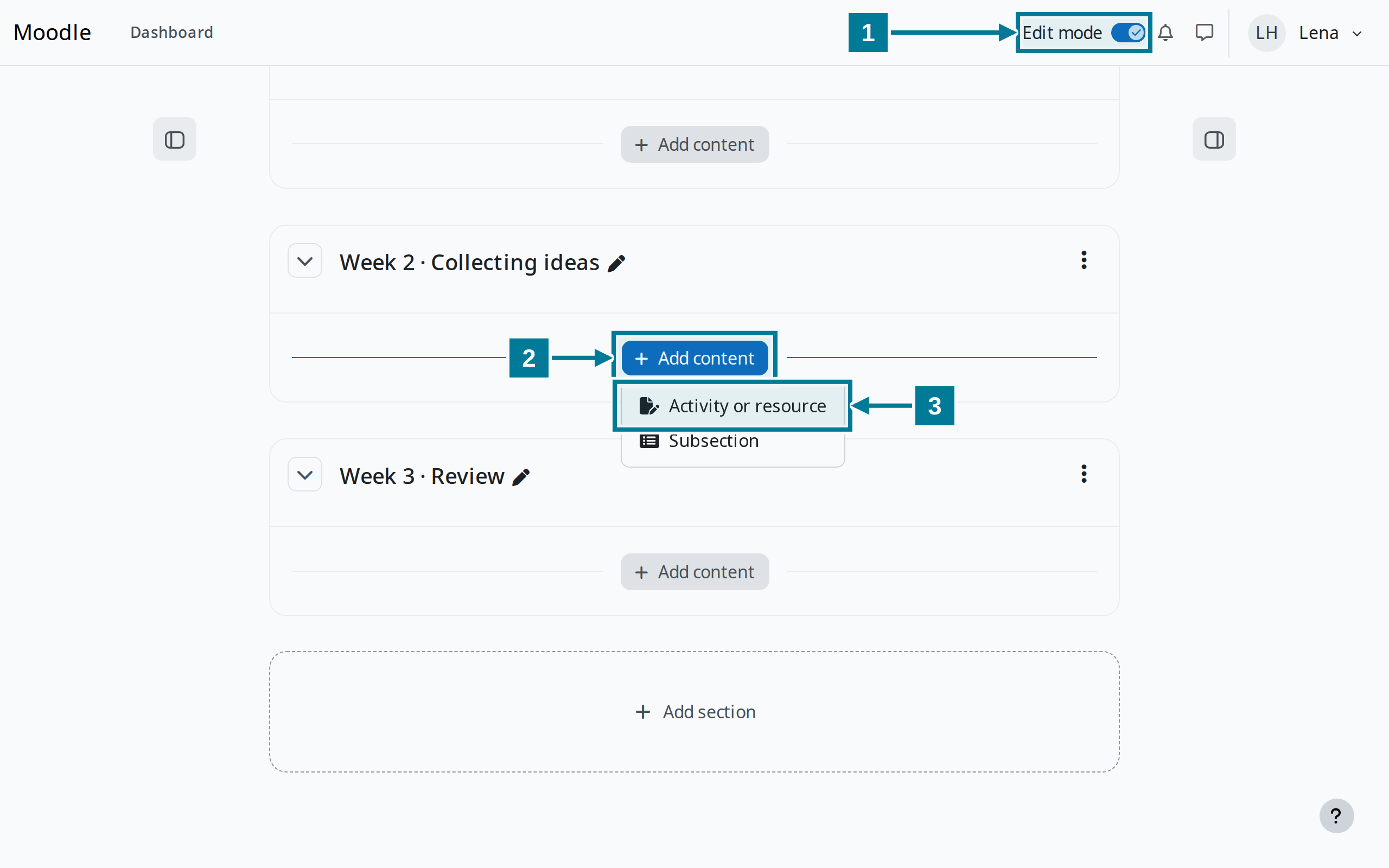
- Turn on Edit mode at the top right of the course.
- Choose Add content in the right section.
- Choose Activity or resource.
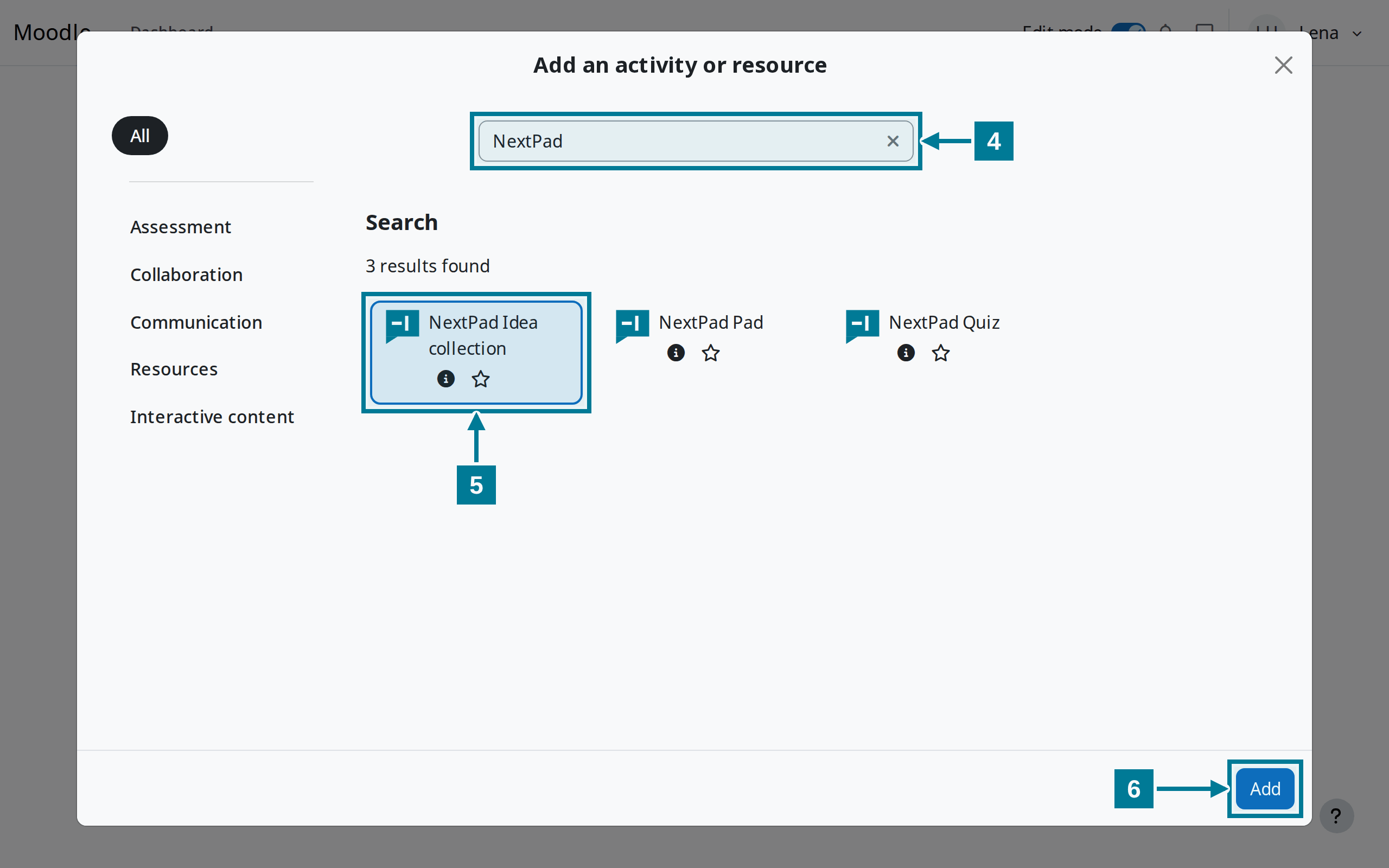
- Type NextPad into the search.
- Choose NextPad Idea collection. A quiz works the same with NextPad Quiz, a shared text with NextPad Pad.
- Choose Add.
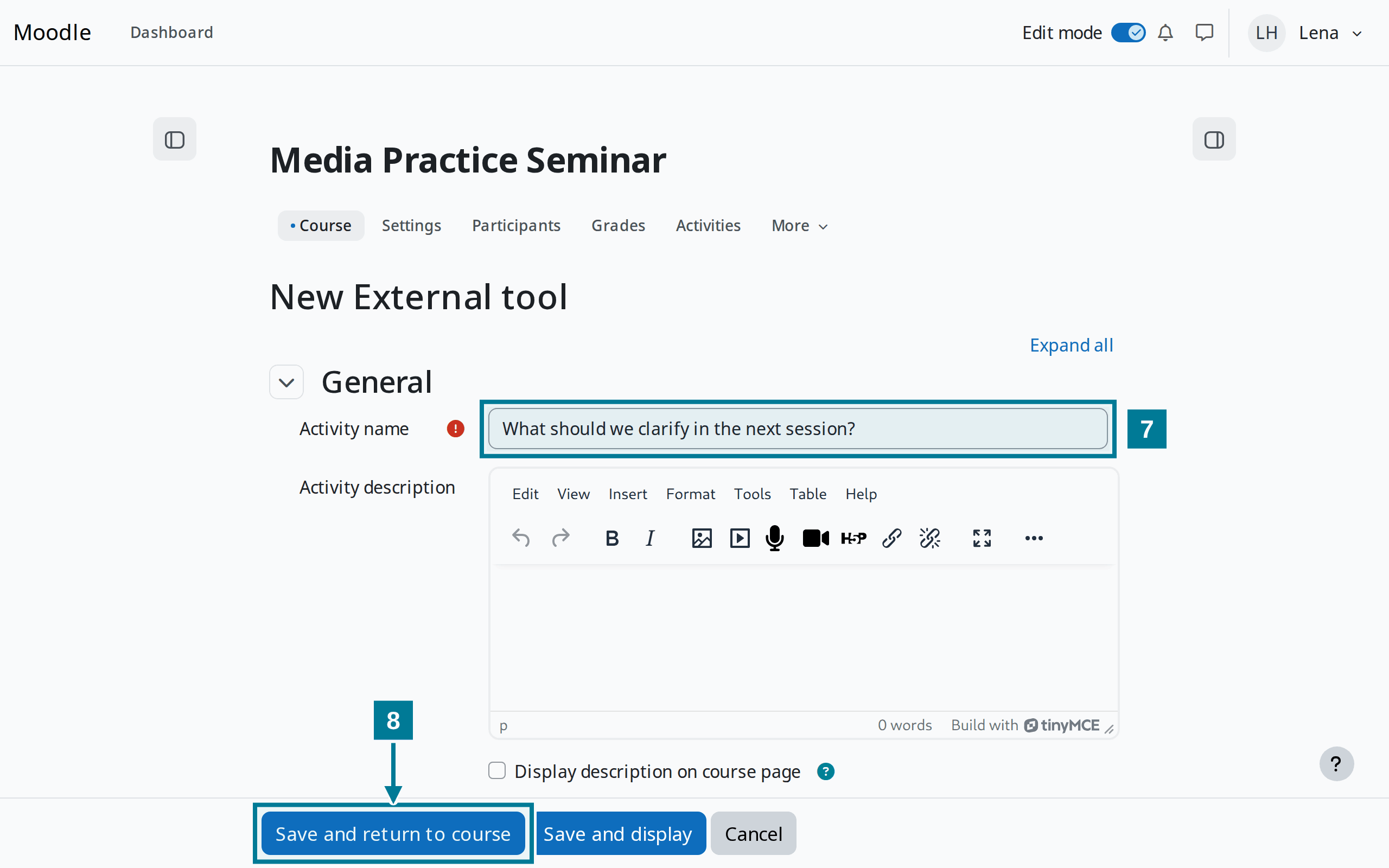
- Enter the question of the collection under Activity name. NextPad takes up to 200 characters.
- Choose Save and return to course.
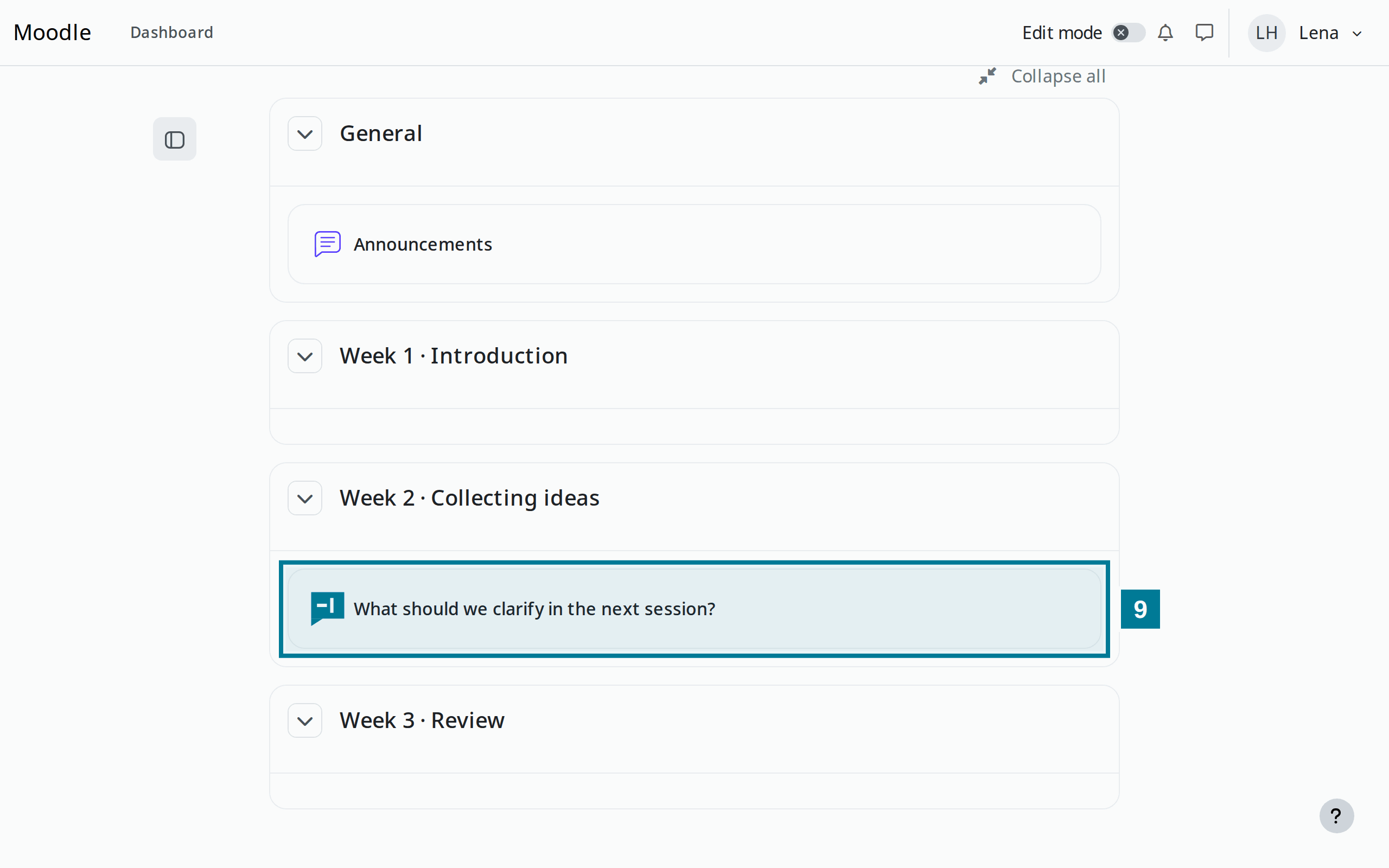
- Click the activity in the course. NextPad opens in a new window.
What the lead sees
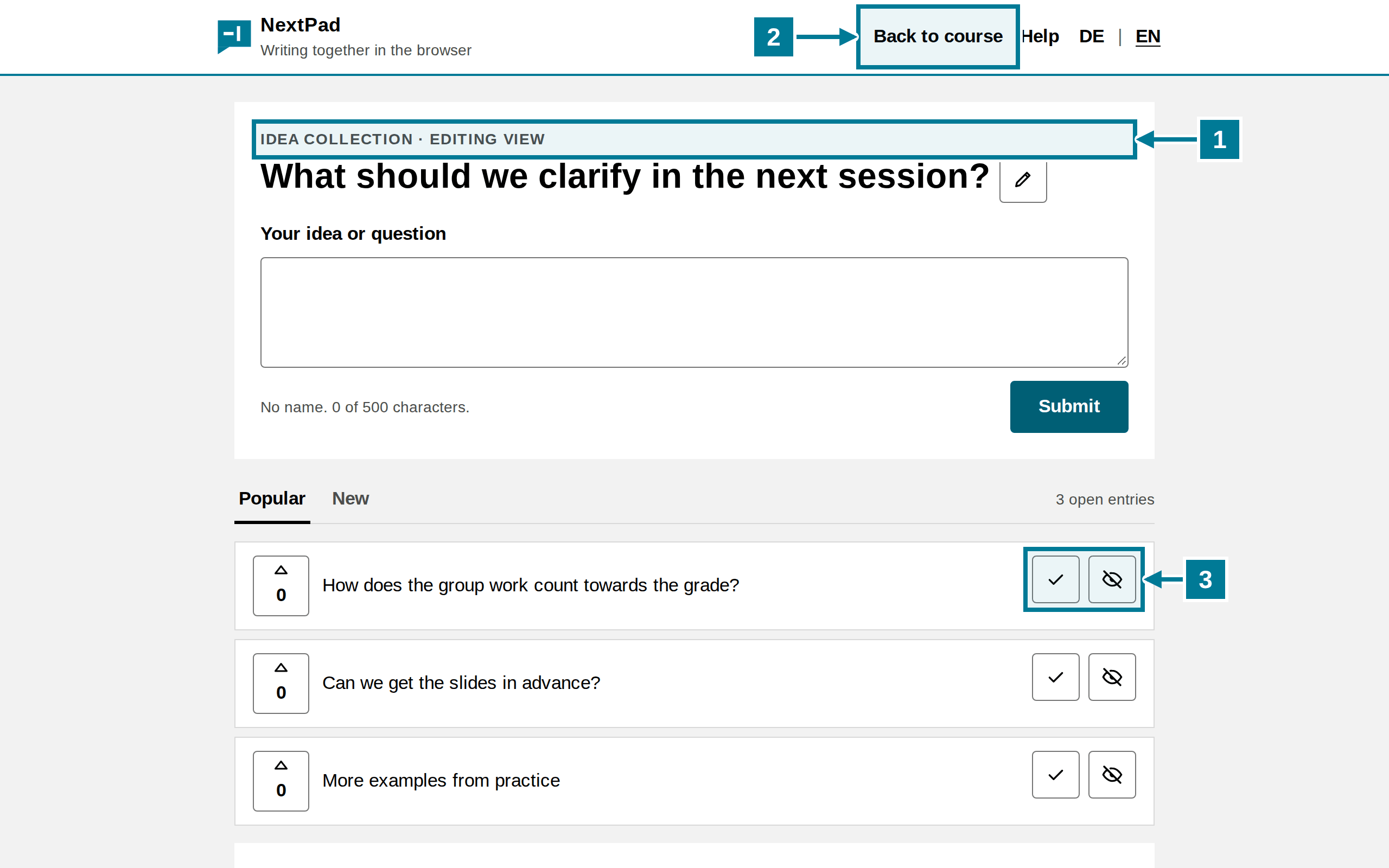
- Editing view appears above the question. All teachers of the course may moderate.
- Back to course leads to the course page in Moodle.
- The tick marks an entry as done, the eye hides it. More in Collect and moderate.
What students see
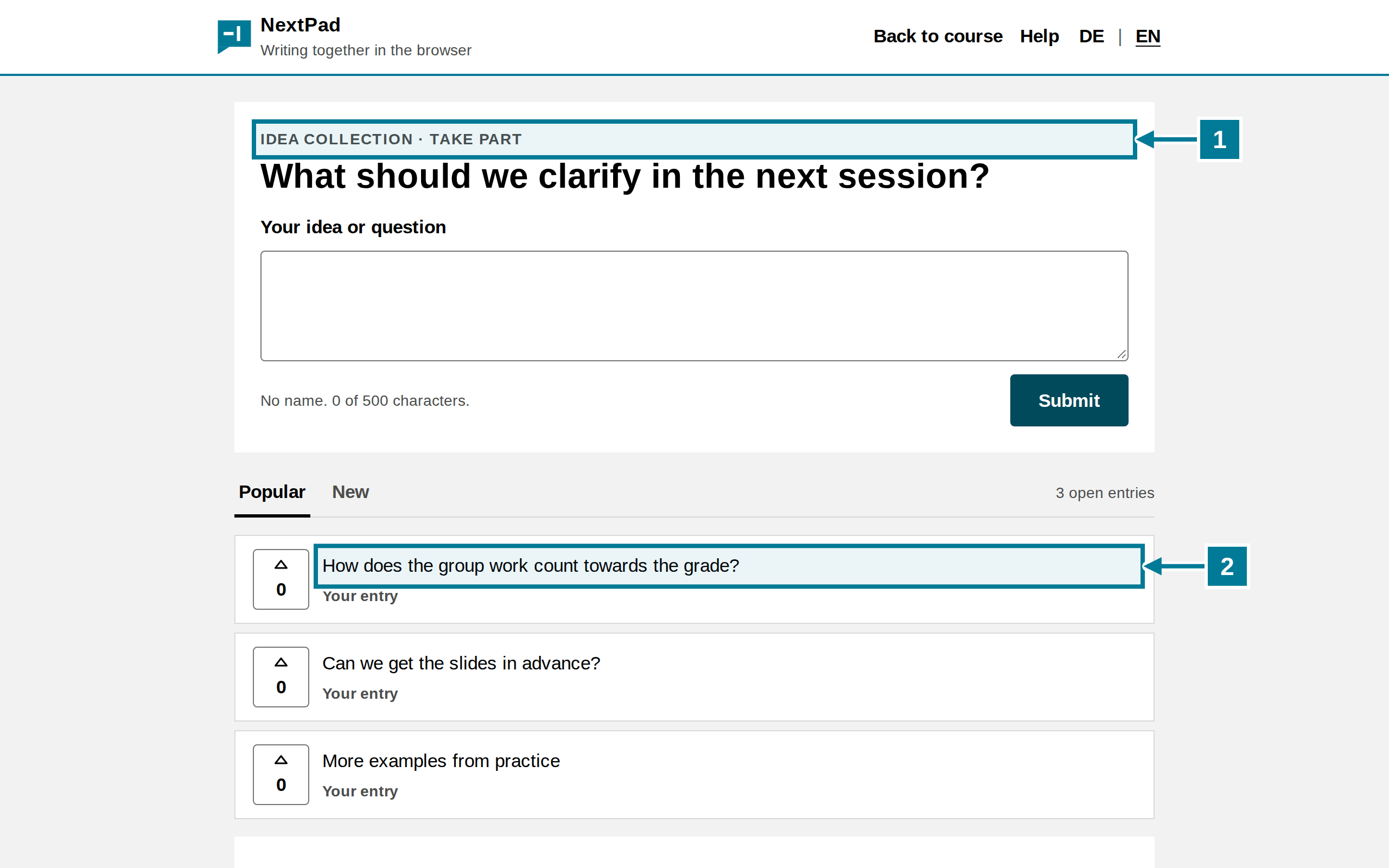
- Take part appears above the question.
- Own entries carry the note “Your entry”. Everyone else sees them without a name.
Good to know
- NextPad takes the question when the activity starts for the first time. If the name changes in Moodle later, the question stays. It can be changed in NextPad with the pencil.
- The QR code on the board leads to the activity in Moodle. Whoever scans it signs in to Moodle and then lands in the collection. Guests without a Moodle account cannot get in.
- Each activity has its own collection. A copy of the activity in another course starts empty.
- A course collection cannot be deleted from within NextPad. It is not subject to any NextPad deletion period either.
Try it yourself
Create an idea collection with the question from the pictures in a course and start it. Then write an entry with a student test account and compare both views. Switching roles in Moodle is not enough for this: whoever has started the activity once as lead stays lead in NextPad.
What should we clarify in the next session?